

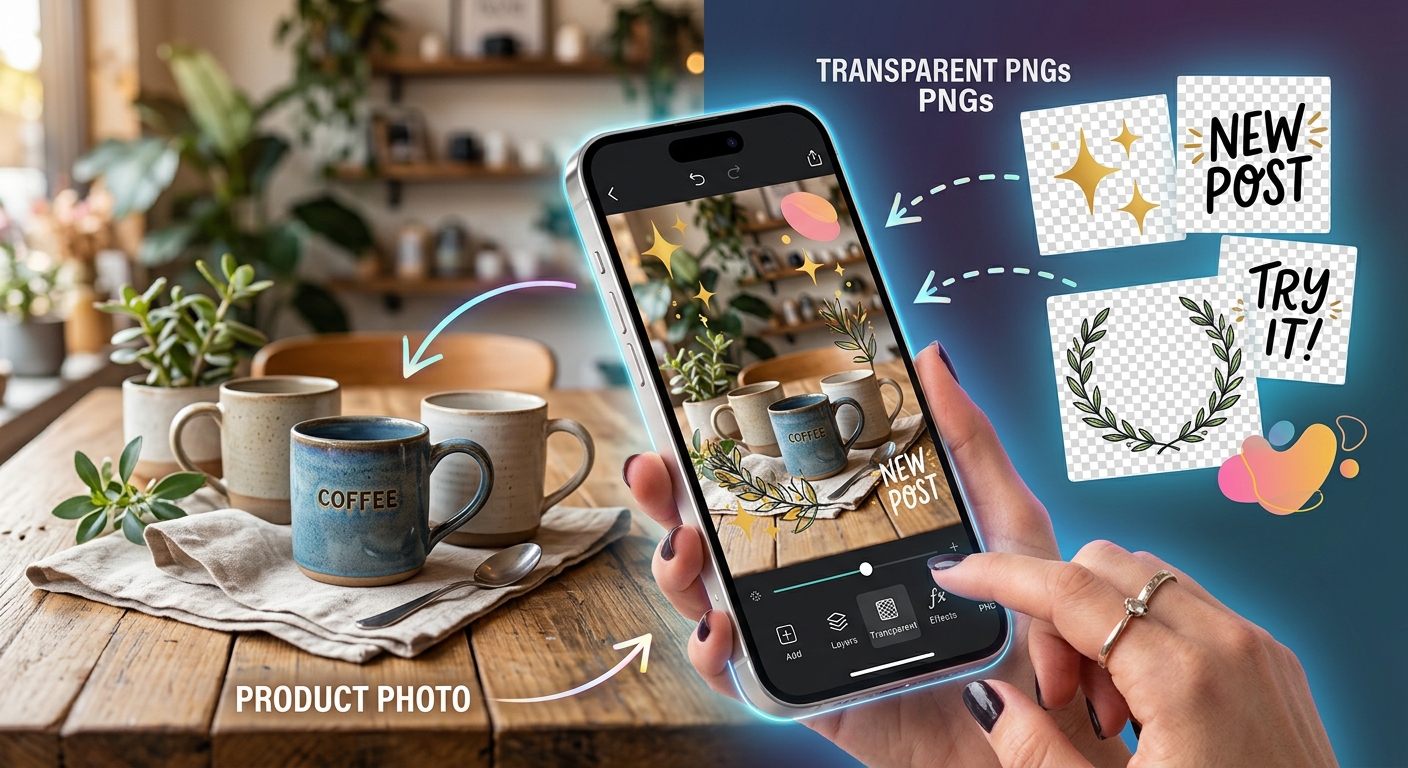
A sale badge can help a product photo tell its story. It can also cover the very detail that makes someone want to buy. The difference often comes down to a few choices: where you place the graphic, how much space you leave, and whether the product still gets noticed first. Transparent PNGs give you room to make those choices without adding a solid rectangle around every decoration.
You can follow this workflow in any editor that supports separate layers and image export. Start with a clear product photo, add a few carefully chosen PNG assets, and check the finished design at phone size. You do not need complicated effects. You need a readable message and a product that remains easy to see.
Three Checks for Better Product Posts
- Keep the product’s main features clear of overlays.
- Choose PNG graphics that stay readable against the photo.
- Export a finished copy while preserving your editable layers.
Build the Layout Around Your Product
Before adding anything, decide what the post needs to communicate. A new arrival, a discount, and a seasonal promotion each call for a different emphasis. Pick one main message. Trying to announce every benefit in a single image usually leaves little space for the product.
Look at the photo’s natural arrangement. Where does the product sit? Which areas are quiet? A plain wall, open tabletop, or soft background often provides a useful home for a badge. Detailed packaging, patterned fabric, and reflective surfaces are harder places to put graphics.
Set the canvas proportions before positioning your overlays. Use the dimensions required for your intended placement. A square composition and a tall composition need different crops, even when they use the same photo. Avoid designing everything first and forcing it into a different shape afterward.
Place the photo on the bottom layer. Adjust its crop until the product feels comfortably framed. Leave room around the edges for your message and decorations. Keep a copy of the original photo available in case you need to change the crop later.
Choose PNG Assets With Clear Jobs
A transparent PNG can contain a badge, a ribbon, a leaf, a sparkle, or an entire border. Its transparent areas let the photograph remain visible beneath it. That makes PNG useful for separate visual elements you want to move around the composition.
Choose each asset for a reason. A badge communicates an offer. A decorative graphic sets a mood. A frame gives the image a boundary. If two assets perform the same job, try removing one. The result often feels easier to read.
- Badges: Use them for one brief message, with enough space for readable lettering.
- Decorative graphics: Place them where they support the product’s theme without hiding useful details.
- Frames: Choose borders that leave enough open space around the product and its message.
- Asset quality: Check transparency, edge clarity, dimensions, and usage terms before building the layout.
Do not assume that a visible checkerboard means the file has real transparency. Some images have a checkerboard baked into their pixels. Place the asset over a solid colored background to test it. Genuine transparent areas should show that background without a grid or white rectangle.
Inspect the asset at its intended size, too. A small PNG may look fine as a corner accent but become soft when stretched across the canvas. Start with an asset large enough for the placement, then reduce it as needed.
Arrange the Layers in a Simple Sequence
Most editors stack layers from bottom to top. Anything higher in the stack can cover something below it. Keep your photo at the bottom, then add decorative graphics, badges, and text in an order that matches the composition.
A frame commonly sits above the photo. Text may sit above a badge background. A leaf decoration might sit behind the badge but still above the photograph. Change the stacking order whenever an overlap makes the message harder to read.
- Place and crop the photo. Keep the product’s defining features visible.
- Add the main badge. Position it in open space and size it around the message.
- Add supporting graphics. Start with one decoration and assess whether another helps.
- Fit the frame. Keep its inner edge clear of the product and text.
- Review the full composition. Reduce the viewing size and check what catches your attention first.
Name your layers with plain labels, including “product photo,” “offer badge,” and “corner graphic.” Group related elements if your editor supports it. This makes later revisions easier, especially when you need a second version with a different offer.
Prepare a JFIF Photo Without Losing PNG Transparency
You may reach this stage with a product photo saved as JFIF. JFIF is a format used to store JPEG image data, but some editors expect a file with a JPG extension. If your editor rejects the photo, prepare a compatible copy before continuing.
Converting JFIF to JPG can help you prepare the product photo for an editor that requires JPG. Check the converted copy for the correct orientation, dimensions, and visible detail before importing it. Keep your original file as a backup.
This step applies to the product photograph. Keep badges, frames, and decorative overlays as PNG files. JPEG does not preserve transparency. Converting an overlay to JPG can replace its clear areas with a solid background that blocks the photo underneath.
Avoid repeatedly saving the photograph as JPEG during preparation. Repeated lossy saves can reduce image quality. Prepare one usable copy, bring it into your layered project, and make your layout adjustments there.
Place Badges Where They Support the Product
Badges work best when they are easy to notice without becoming the entire subject. Begin in a quiet corner or beside the product. Leave a visible gap between the badge and the product’s outline unless the overlap has a clear purpose.
Protect details that help someone understand the item. On a shoe, that might be the sole or stitching. On a skincare bottle, it might be the label. On a handmade mug, it might be the handle and glaze. Treat these details as areas to keep clear.
Size the badge by checking its message at a realistic viewing size. If the lettering becomes difficult to read, enlarge the badge or shorten the wording. Making the product smaller to accommodate a long message usually weakens the photo.
Keep badges away from the outer edge. Tight placement can feel cramped, and some viewing contexts may crop the image differently. Give the badge enough breathing room that the layout still feels intentional when seen as a small preview.
Use Contrast to Keep Every Element Readable
A transparent background does not guarantee a visible graphic. White sparkles can disappear against a pale wall. Dark branches can blend into a shadow. Check the actual edges of each overlay against the photograph beneath it.
Move the graphic before adding effects. A small shift toward a quieter area may solve the problem. If it does not, choose a different color variant or add a restrained outline or shadow, where your editor allows it.
Badge text needs contrast against the badge itself. Dark text on a pale badge or light text on a dark badge is a useful starting point. Thin lettering and busy textures make small messages harder to read, even when their colors seem different.
Keep shadows consistent and subtle. A heavy shadow can make a simple badge look detached from the photo. Judge effects at the final viewing size, where a small amount is often enough.
Give Decorations and Frames Room to Breathe
Decorative PNGs should guide attention toward the product. A sprig near a bottle can support a botanical theme. A small cluster of stars can suit a celebratory post. Place these elements around the subject instead of scattering them evenly across every empty area.
For frames, check the thickness of all four sides. A border that looks delicate on a large canvas can consume useful space in a small post. Resize or reposition the frame until it supports the photo without squeezing it.
Avoid accidental contact between edges. A ribbon barely touching a bottle cap or a frame brushing a badge can make the placement feel unresolved. Separate the shapes clearly, or overlap them enough that the relationship looks deliberate.
Export a Clean Image for Posting
Save the editable project before exporting. The project keeps your layers available for future changes. The exported image is the copy you upload, and it usually combines the visible composition into one finished image.
For a full product photo, a high quality JPG may provide a smaller file. PNG can be useful when crisp lettering and flat graphics are a priority, though the file may be larger. Your PNG overlays do not require the finished post to remain PNG once they are combined over an opaque photograph.
- Dimensions: Export at the pixel size required for the intended placement.
- Color: Use sRGB when available for a common web color workflow.
- Quality: Check JPEG compression around text, product edges, and fine details.
- Background: Confirm that the finished photo fills the canvas where intended.
- Final review: Open the exported file and inspect it at phone size.
For screen use, pixel dimensions matter more than the DPI value in the export settings. Check the width and height directly. Exporting a small composition with a higher DPI label does not create additional image detail.
Review the exported copy separately from the editor preview. Look for clipped text, unexpected borders, soft badges, and color changes. If possible, inspect the uploaded preview before publishing, since the platform may resize or compress your image.
Let the Product Keep the Spotlight
A strong layered post gives every element a purpose. The photo shows the item. The badge carries the message. The decorations and frame support the mood. None of them needs to compete for every inch of the canvas.
Before posting, remove one optional graphic and compare the two versions. Keep whichever makes the product and message easier to understand. With clear placement, readable contrast, and a checked export, transparent PNGs can turn a simple product photograph into a focused social post.