

Your latest post looks great. Then you place a different cutout into the same design, and everything feels wrong. The headline crowds the subject. The background swallows its edges. A layout that worked yesterday suddenly needs rebuilding. Consistency gets easier when you give each layer a clear job and leave room for your graphics to change.
This tutorial walks through a reusable setup for backgrounds, transparent PNG cutouts, and text. You can follow it in any editor that supports separate layers, image resizing, and export controls.
Your Reusable Layout Recipe: Start with a canvas sized for its intended placement. Give the background, PNG subject, and headline separate layers. Choose graphics with clean edges and enough pixels for their displayed size. Keep a dependable margin around text, check contrast at phone size, and save an editable master. Before publishing, export a flattened copy and inspect it for cropped content, rough edges, and small lettering. Repeat the structure while changing only the details your next message needs.
Set the Canvas Before Placing Any Graphics
Begin with the destination. A square feed image, a tall story, and a wide announcement need different arrangements. Check the dimensions and cropping behavior of your intended placement before building the layout. Treat each shape as a separate template, even when all versions share colors, fonts, and graphics.
For a practice project, create a 1080 by 1080 pixel square canvas. This gives you a concrete working size without tying the tutorial to a particular platform. Work at the intended output dimensions whenever possible. Enlarging a finished design later can soften its raster images and text.
Add guides around the outside of the canvas. A starting margin of about 60 pixels on this practice canvas gives text some breathing room. Adjust it for your composition. Interface controls and preview crops can cover parts of some placements, so check the actual preview before treating any margin as safe.
Choose one main message. A post announcing a workshop might need a headline, a date, and a small action prompt. It probably does not need the full event description. Less text gives your PNG subject room to support the message.
Choose PNG Assets That Fit the Space
Decide what the graphic needs to do before searching. Is it the main subject, a small accent, or a frame around the text? A large product cutout needs clear detail. A decorative leaf can be simpler. Matching the asset to its job prevents unnecessary clutter.
Look at the silhouette next. A tall object suits a narrow side column. A broad arrangement needs more horizontal space. Notice which direction the subject faces or leans. A graphic that points toward your headline can help connect the image and message.
Once you know the shape and mood you need, browse transparent PNG graphics for candidates that suit your layout. Compare their outlines, detail, and available dimensions before choosing. Keep a few alternatives so you can test the composition without restarting your search.
Place each candidate over both a pale background and a dark background. A checkerboard preview can hide pale fringes, stray pixels, or leftover background patches. Inspect the edges at normal size and at higher magnification. Pay particular attention to hair, leaves, glass, and thin lines.
Check usage terms before saving an asset into your reusable collection. A free download does not automatically establish permission for every use. Keep any relevant license information alongside the image so you can check it again when the project changes.
- Check the pixel dimensions: Prefer an asset with enough pixels for its planned size in the exported design.
- Match the visual style: Combine graphics with compatible lighting, color, and levels of detail.
- Inspect transparent edges: Reject cutouts with visible halos or rough outlines that you cannot repair.
- Allow for built-in padding: Empty transparent space can make the visible subject smaller than its file dimensions suggest.
Build a Layer Stack With Clear Roles
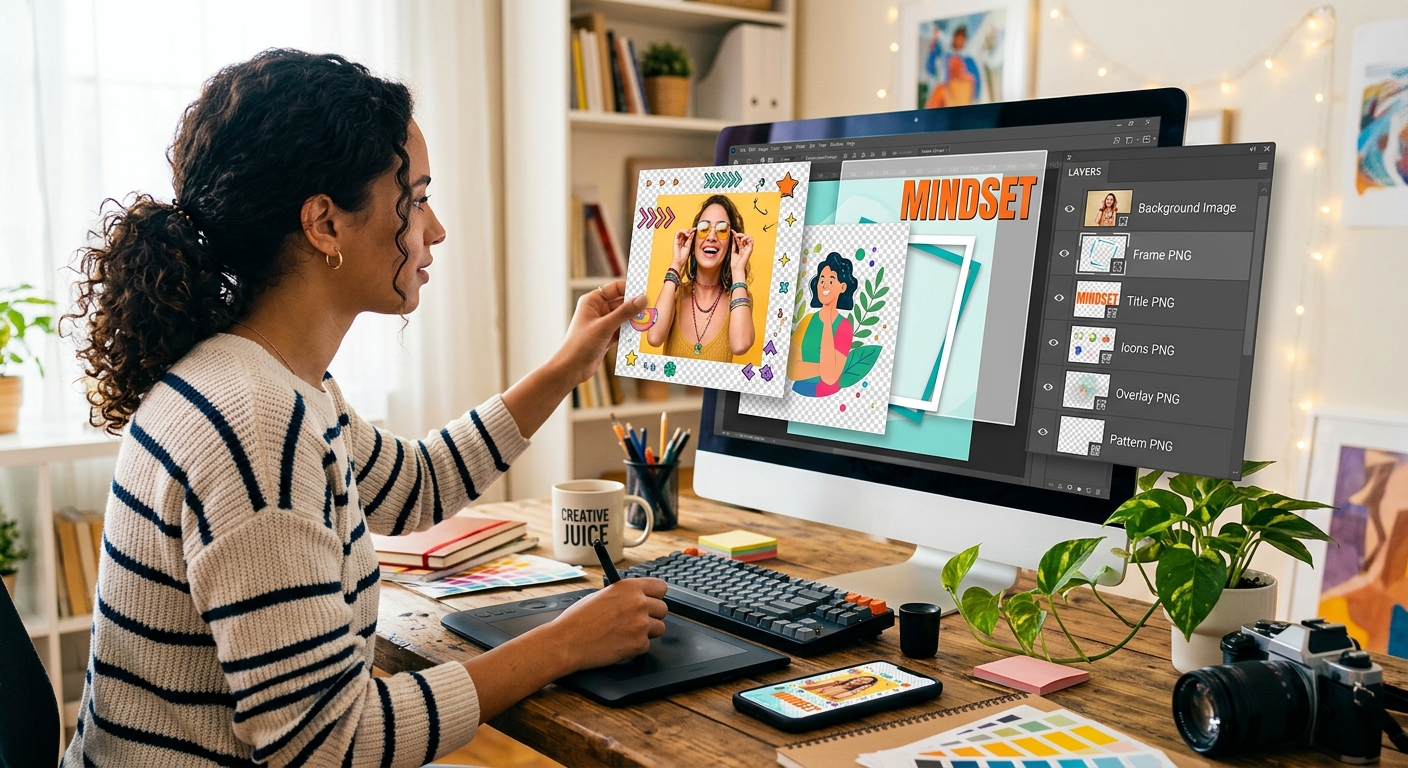
Place the background at the bottom. Add any background texture or broad color shapes above it. Put your main PNG subject next, then the headline and supporting text. Small foreground accents can sit higher when they serve a clear purpose.
Name layers by their function. Labels such as “Background,” “Main Subject,” “Headline,” and “Date” make later edits easier. Group related text where your editor allows it. Lock the background after positioning it to prevent accidental movement.
Transparency lets the background show through empty areas around a cutout. You do not need to erase those areas again. Resize the image proportionally so circles stay round and faces keep their natural shape. Use cropping or masking when you need to hide part of a subject.
Keep overlap deliberate. A cutout can cross a decorative shape or extend beyond a canvas edge. Avoid covering words or small details that carry meaning. If two objects almost touch, either separate them clearly or overlap them enough to make the relationship look intentional.
Give Text and Cutouts Enough Contrast
A graphic can look sharp on one background and disappear on another. Dark leaves may merge into a deep green field. A white object may lose its outline on a pale canvas. Change the background tone first. That often solves the problem without adding effects.
When the background contains detail, place a solid or mostly opaque panel behind the text. Another option is a gentle gradient that creates a quieter area for the headline. Keep the text area predictable across your template variations.
Use shadows with care. A subtle shadow may help a cutout separate from the background, but a heavy one can make it appear pasted onto the design. Keep shadow direction and softness consistent across assets. Check the result at normal viewing size.
For lettering, begin with a strong light and dark pairing. Avoid thin text over busy imagery. Color alone may not make small text readable, especially when two colors have similar brightness. A grayscale preview can help you spot weak separation, though it does not replace a full readability check.
Create Spacing Rules You Can Repeat
Consistency comes from stable relationships. Keep the headline aligned to the same guide. Leave a dependable gap between the headline and supporting text. Give the main subject a defined area rather than placing it wherever empty space happens to remain.
Try a simple split on your square practice canvas. Reserve roughly one side for text and the other for the PNG subject. Let a small part of the cutout cross the dividing area if it adds depth. Keep the headline clear.
Judge the visible subject, not just its selection box. Transparent padding can make an image appear centered in the editor while the actual object sits too far left. Move the cutout according to its visible edges and visual weight.
Test the template with a longer headline and a wider graphic. These reveal whether the layout has enough flexibility. Set sensible limits, such as a headline that fits within three lines. When the message exceeds that limit, shorten the wording or use another template.
Match Image Resolution to the Finished Post
PNG is a raster format, which means its image detail is built from pixels. Enlarging a small cutout does not restore missing detail. Choose a larger source when the subject needs to occupy more space.
Suppose a cutout will appear about 600 pixels tall in your final export. A source whose visible subject is at least that tall is a useful starting point. If the entire file is 600 pixels tall but includes large transparent margins, the subject itself has fewer pixels available.
For screen graphics, focus on pixel width and height. Changing only a resolution label such as pixels per inch does not add detail when the pixel dimensions stay unchanged. Inspect the exported image at its actual size to judge sharpness.
Choose an Export Format for the Finished Layout
| Format | Useful for | What to Check |
|---|---|---|
| PNG | Layouts with text, flat colors, and graphics that need clean edges. | File size and whether the finished image needs transparency. |
| JPEG | Opaque layouts dominated by photographs. | Compression artifacts around text and high-contrast edges. Transparency is unavailable. |
| WebP | Image delivery where the destination explicitly accepts this format. | Upload support and whether the export uses lossy or lossless compression. |
Save a Master That Makes the Next Post Easier
Save an editable master with separate layers before exporting. Keep your original PNG assets in a nearby folder. Use clear filenames that identify the layout shape and purpose, such as “square-workshop-master.”
Duplicate the master for each new post. Replace the subject, update the wording, and adjust only what the new content requires. Keep recurring choices stable: headline placement, font sizes, margins, and supporting text style.
Build a small family of templates when one arrangement cannot handle every message. A subject-heavy post may need a different balance from a text-heavy announcement. Shared colors and spacing can connect them without forcing every graphic into the same position.
Export and Inspect the Image People Will See
Export a flattened copy at the intended pixel dimensions. For an ordinary post with a complete background, use an opaque export. Keep transparency when you are exporting a reusable overlay or cutout that needs to sit over another image.
If your editor offers a color profile choice, sRGB is a practical starting point for general screen delivery. Use a high-quality JPEG setting when exporting photographic layouts, then inspect the result. For PNG, check that any file-size reduction has preserved the appearance you need.
Open the exported file separately. Preview it on a phone or at a comparable display size. The editor view can hide problems because you are working zoomed in. Check the platform preview too, since upload processing and cropping may change the result.
- Read every line: Confirm that the headline and supporting details remain legible at a small display size.
- Inspect the subject: Look for soft detail, stretched proportions, pale fringes, and accidental cropping.
- Check the boundaries: Make sure text and meaningful details remain clear of interface overlays and preview crops.
- Keep both versions: Save the editable design and the exported publishing copy with distinct filenames.
Make Every New Post Feel Part of the Same Set
A dependable layout gives you fewer decisions to repeat. Your background establishes the mood. Your PNG cutout carries the visual focus. Your text explains the message. Consistent spacing helps those parts work together across changing subjects.
Start with one template and test it with three different graphics. Refine the parts that keep causing trouble. Once the layout handles those variations comfortably, you have a useful foundation for future posts. Each new design becomes an adjustment to a system you already trust.