

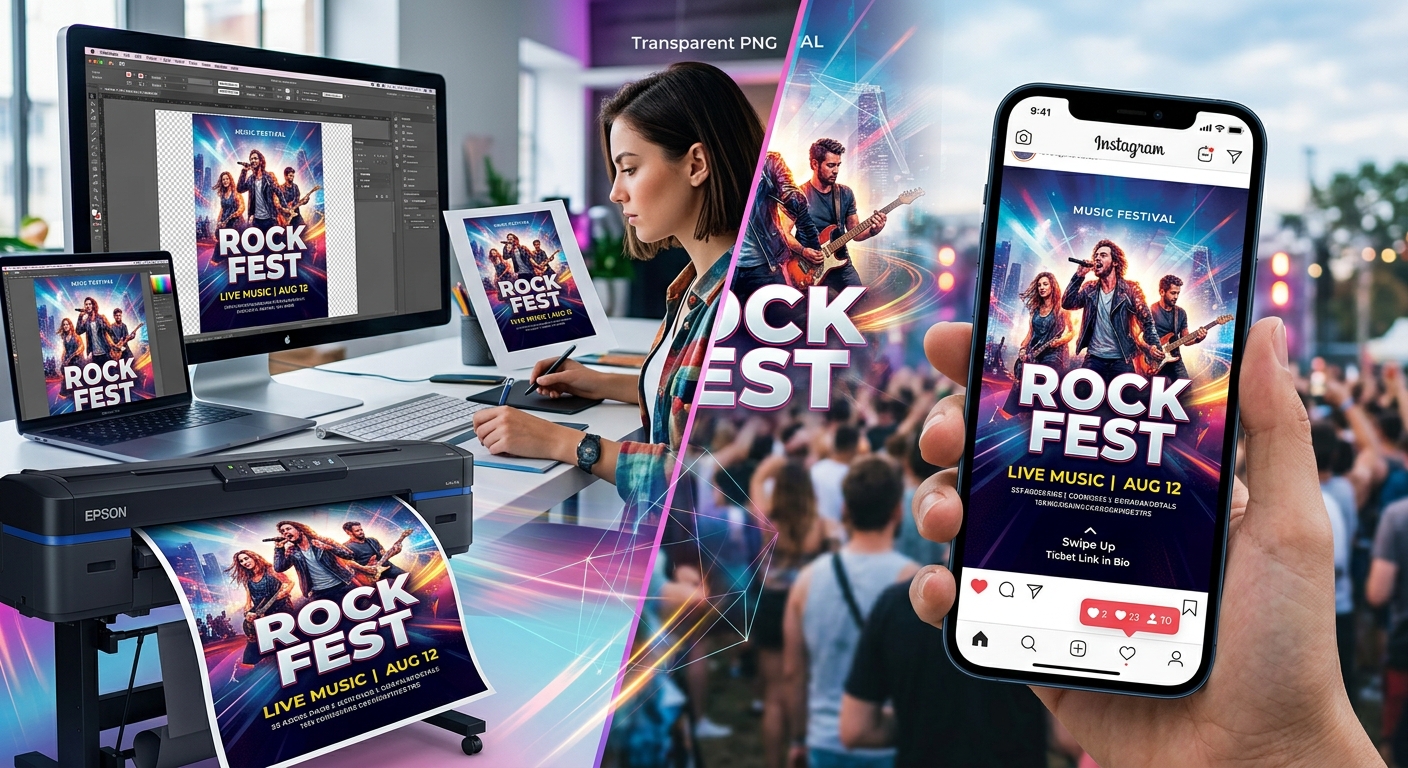
Your event poster has a few seconds to tell someone what is happening and why they should care. A beautiful graphic can draw attention, but the date still needs to be readable. Transparent PNGs help you build that balance. You can place a flower, musical instrument, food cutout, or decorative shape around your event details without a rectangular background covering the design. The trick is choosing suitable graphics, giving your text enough space, and checking image quality before you export.
Three Steps to a Clearer Poster
- Choose transparent PNGs with clean edges and enough pixels for their final size.
- Arrange graphics around event details that remain easy to read.
- Check separate print and social media exports before sharing.
Start With the Event Details and Final Poster Size
Write down the information your audience needs before choosing any artwork. Include the event name, date, time, venue, and booking instructions. Add a price or admission note if it affects the decision to attend. Check the spelling of names and addresses now. Fixing a wrong venue after printing is much harder than changing a text box.
Decide where the poster will appear. A printed notice on a community board needs a layout that works from a distance. A social post needs text that stays readable on a phone. You can use the same graphics for both, but each version deserves its own arrangement.
Set your canvas to the intended output size. For print, use the physical dimensions requested by your printer. For social media, use the pixel dimensions accepted by your chosen placement. Check those requirements before building the layout, since feeds, stories, and event banners can use different proportions.
Keep a separate editable file for each format. This gives you room to move text and resize graphics without squeezing an entire print poster into a narrow phone screen.
Choose Transparent PNGs That Support the Event Theme
Choose one main graphic that tells people something useful about the event. A guitar cutout fits a live music night. A leafy branch works for a gardening workshop. A cupcake can help introduce a bake sale. Start with that clear connection, then add supporting decoration only where the layout needs it.
A small group of related graphics usually feels more coherent than a collection of unrelated images. Look for similar lighting, illustration styles, and colors. A flat illustrated flower may look awkward beside a highly detailed photographic vase unless that contrast is intentional.
Check Transparency and Edge Quality
Open each PNG against both a light background and a dark background. Transparent areas should let your chosen background show through. A checkerboard displayed by an editor often represents transparency, but a checkerboard baked into the image is still visible artwork.
Inspect the edges at a close zoom. Watch for white halos, leftover background fragments, or rough outlines. These problems can become obvious when you place the graphic on a strong color. Choose a cleaner asset if repairing the edge would take more effort than replacing it.
Check the usage terms for each download, too. A free download does not automatically permit every use. Confirm that the terms cover your event promotion, especially if you are advertising a paid event or using a graphic in commercial material. Keep any required credit information with the original file.
Build a Text Layout Before Adding Decoration
Place your event name first. Give it the strongest visual position through size, weight, and spacing. Put the date and time close enough to read as a group. Follow with the venue and a clear action, whether that means buying tickets, registering, or arriving at the door.
Use a restrained set of fonts. One for the headline and one for supporting details is a manageable starting point. Choose letter shapes that stay clear at smaller sizes. Thin lettering and elaborate scripts can become difficult to read when a poster is reduced for a phone.
Give the text a quiet background. A plain area, a solid panel, or a gentle change in background tone can protect readability. Avoid placing essential details across a busy illustration, even if the colors seem attractive at full size.
Try reading the design from farther away or viewing it at a smaller scale. You should be able to find the event name, date, and location without searching. If you cannot, adjust the hierarchy before adding more artwork.
Layer PNG Graphics Around the Readable Details
Once the text has a clear structure, bring in your main PNG. Place it beside the headline, along an edge, or near the lower part of the poster. Keep its strongest shapes away from small text. A graphic can overlap a decorative panel without covering the information people need.
Think of the layout as a stack. The background sits at the bottom. Large decorative graphics come next. Text panels and event details sit above them. A small accent can sit near the front, provided it does not interfere with reading.
At this stage, a poster maker is an option for assembling the design. In your chosen editor, use the available controls to position images, arrange layers, and adjust text. The same layout principles apply across tools: protect the event details, keep related items close, and leave enough open space.
Use Overlap With a Clear Purpose
A transparent PNG lets the background show around an object’s outline. Use that shape to create a natural fit. A branch might enter from a corner. A musical instrument might frame one side of a concert title. A food cutout might sit beside the price of a tasting event.
Small overlaps can make these pieces feel connected. However, keep the overlap away from letter shapes, ticket instructions, and any QR code. If you use a QR code, retain its clear surrounding margin and test the exported version with a phone.
Repeat one or two colors from the main graphic in your text or panels. This ties the design together without requiring extra decoration. Leave some areas empty so the reader’s eye has a clear path through the poster.
Check PNG Resolution at the Size You Will Use
Transparency does not tell you whether a graphic is suitable for printing. Its pixel dimensions and placed size determine how much detail is available. A PNG that looks sharp as a small corner accent may look soft when stretched across half a poster.
For print, calculate effective resolution by dividing the image’s pixel width by its printed width in inches. A graphic that is 1,800 pixels wide and prints at 6 inches wide provides 300 pixels per inch. Place that same graphic at 12 inches wide, and it provides 150 pixels per inch.
Many printers request around 300 pixels per inch for images viewed up close. Larger posters viewed from farther away may have different requirements. Ask your printer what works for the intended size and viewing distance. Use that answer to judge each graphic at its actual placed size.
Check the visible object as well as the file dimensions. A large PNG canvas may contain a small cutout surrounded by transparent space. Those empty pixels do not add detail to the object. If the visible artwork is small, increasing its size can still reveal softness.
Avoid Treating Resizing as Added Detail
Increasing pixel dimensions does not automatically restore missing detail. Changing a resolution setting without resampling also does not create new pixels. Start with a larger source image where possible. Otherwise, reduce the graphic’s placed size or replace it with artwork that meets the output requirements.
For social media, inspect the graphic in the final exported image at its intended display size. Check curved edges, narrow details, and any shadows. A clean source file can still suffer if the export is too small or heavily compressed.
Prepare the Print Version for the Printer
Keep text editable until the design is approved. Ask the printer which file format, color settings, and finishing requirements they accept. A print PDF is often useful because it can preserve text and other vector elements while including your PNG graphics.
If artwork reaches the trimmed edge, extend it into the bleed area specified by the printer. Keep essential text inside the safe margin. Bleed allows for trimming variation, while the safe margin protects information from getting too close to the cut.
Transparent PNGs can be placed in a print layout even when the finished poster has an opaque background. Let the export process handle transparency according to the printer’s requirements. Avoid converting the whole poster into a low-resolution image just to simplify delivery.
Print a sample at actual size if you can. Check small text, graphic edges, and contrast. A home print can help assess readability, but it may not match the final printer’s color output. Request a proof when color accuracy matters.
Adapt the Layout for Social Media
Duplicate the approved design into a canvas sized for your social placement. Rearrange the content to suit the new shape. A tall print layout may need a larger headline and fewer supporting details in a square post. A story version may need more space above and below the main content.
Keep the event name, date, and action readable in the image. Move longer descriptions into the accompanying caption where appropriate. Avoid shrinking every element just to preserve the print layout.
A completed poster usually benefits from a solid background, even though its source graphics are transparent. Export an opaque image unless the placement specifically requires transparency. PNG can suit text and flat artwork. JPEG may provide a smaller file for photo-heavy designs, depending on the export settings.
View the saved file on a phone before posting. Check whether the text is readable without zooming and whether the preview crops any useful information. Leave room around important details when an interface may cover part of the image.
Review the Saved Files Before Sharing
Open the actual exports for a final check. The editable canvas can look correct while a saved file contains an unexpected crop, missing font, or softened image.
- Confirm the event name, date, time, venue, price, and booking instructions.
- Inspect PNG edges for halos, unwanted backgrounds, and visible pixelation.
- Check print dimensions, bleed, safe margins, and the printer’s file requirements.
- View the social version on a phone and review its framing and text size.
- Test any QR code from the exported file and from a printed sample if used.
Name the files clearly so you can tell the print version from each social version. Keep the editable project and original PNGs in the same event folder. Future updates will be easier when you can change a date without rebuilding the design.
Give Your Event a Poster People Can Read
The strongest poster gives artwork and information clear roles. Transparent PNGs establish the theme and frame the layout. Readable text tells people where to go, when to arrive, and what to do next.
Start with clean graphics, build around the event details, and check resolution at the final size. Then prepare separate exports for print and social media. Those small decisions help your poster look sharp and make the event easier to act on.